Fix for Synology Cloud Sync: Sync folder does not exist
Synology’s Cloud Sync solution works great with Nextcloud… If it does work. I came across the following error:
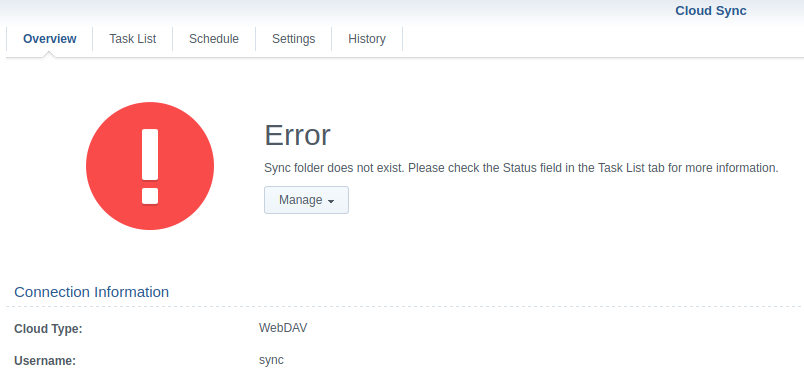
The Disk Station didn’t even try to connect and every needed folder existed. Weird. After googling around I came across the following solution at Github by @mback2k:
Connect via SSH
Connect to your Disk Station via SSH. You might have to enable it in DSM under the settings:
- Open the settings
- Click on Terminal & SNMP
- Tick Enable SSH service
After that, connect to your Disk Station via SSH (use the Powershell on Windows, Linux users use a simple terminal):
ssh <dsm_admin_username>@<diskstation_ip>Log in with the admin password and enter sudo su – you will have to enter your password again.
Fix the SQLite database
Now, start the database editor for the Cloud Sync app database:
sqlite3 /volume1/@cloudsync/db/config.sqliteClear the state for the specific problem:
UPDATE session_table SET error = 0 WHERE error = -12;Disconnect by pressing Ctrl + D.
Restart the Cloud Sync package
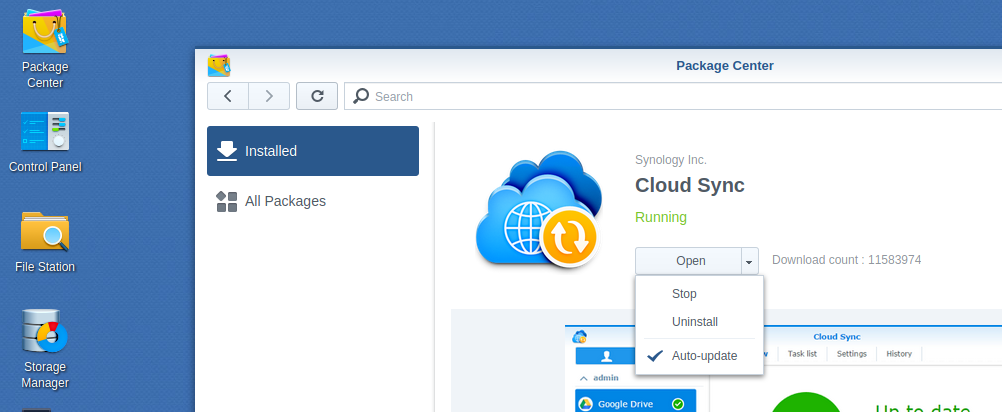
Last but not least, you have to restart the Cloud Sync package. Open the package manager in DSM and click on Installed – select the Cloud Sync package and click on the arrow next to Open. Click on Stop:
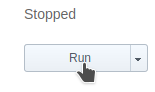
Start the package by clicking on Run:
That’s it!
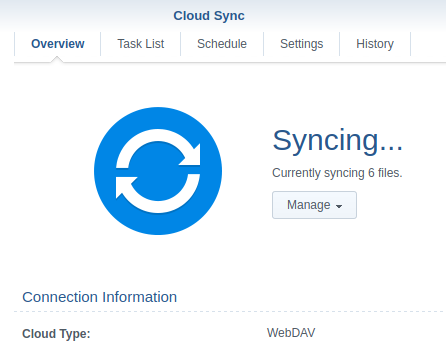
Your Cloud Sync should work again. Woo-hoo.
When i put the update command, i get this error
Error: near “sqlite3”: syntax error
It works for me on DSM 7. Where are you typing this command? Did you copy it or type it yourself?
Thank you, man! You saved my day.
This only modify the db to dont show the sync error, after this command it will show you all green, but there is no sync of files with the cloud service.